CI Type Management
Overview
CI Type Management is the core module of Huayang CMDB, used to view available class models in the system and manage all CI type structures. Through class models, you can classify and model various resources in the IT environment (such as hardware, applications, cloud resources, etc.).
What this module can do for you:
- Create custom CI types to meet your business needs
- Define CI attributes
- Set identification rules to automatically identify and merge duplicate CIs
- Establish relationships between CIs
- Reuse existing type attributes and rules through inheritance
Main Features
- Tree Structure Management: Organize CI types in parent-child hierarchy, supporting attribute inheritance
- Attribute Management: Define attribute fields for each type, supporting multiple data types (string, integer, option, etc.)
- Identification Rules: Set matching and validation rules to automatically identify duplicate CIs
- Relationships: Define relationship types that can be established between types
- Import/Export: Support type import and export
Interface Layout
The CI Type Management page uses a left-right split layout:
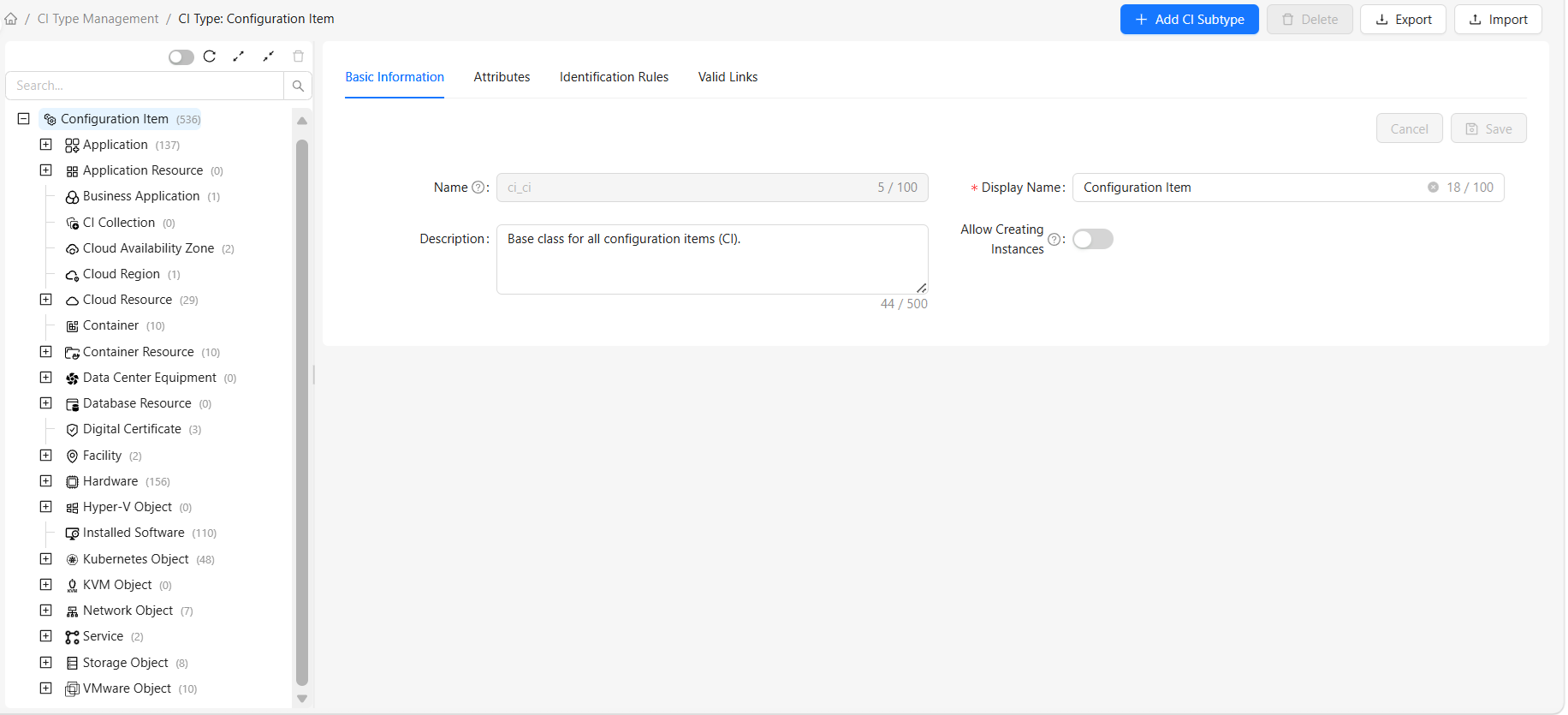
Left: CI Type Tree
The left side displays the hierarchy of all CI types:
- Root Node:
Configuration Itemis the base class for all types - Expand/Collapse: Click the plus/minus icon before a node to expand or collapse subtypes
- Instance Count: Each type shows its CI instance count
- Hide Empty Types: Check "Hide Empty Types" to filter types with no instances
- View Details: Click a type node to view details on the right
Right: Type Details
The right side displays detailed information for the currently selected type:
- Basic Information: Type name, display name, description, whether instance creation is allowed
- Attributes: All attributes of this type and its parent types
- Identification Rules: Matching and validation rules for identifying duplicate CIs
- Relationships: Relationships that can be established between this type and other types
How to Use
View Types
- Click any type node in the left type tree
- The right side automatically displays detailed information for that type
- Switch tabs at the top to view different information categories
Search Types
Use the search box above the left tree:
- Enter a type name in the search box
- The tree structure automatically filters to show matching types
- Clear the search box to restore all types
Create New Type
- Click a parent type in the left type tree
- Click the "+ Add CI Subtype" button
- Fill in type information in the popup dialog:
- Name: Unique identifier for the type (in English, e.g., "smart_lock" for a subtype of
IoT Device) - Display Name: Display name for the type (e.g., "Smart Lock")
- Description: Description of the type's purpose
- Name: Unique identifier for the type (in English, e.g., "smart_lock" for a subtype of
- Click "OK" to complete creation
Edit Type
- Select the type to edit in the left tree
- Modify information directly in the right detail page
- After modification, click the "Save" button at the top
Delete Type
Note: Only custom types with no instances can be deleted. System built-in types and types with instances cannot be deleted.
- Select the type to delete
- Click the "Delete" button
- Confirm the deletion
Export Type
- Select the type to export in the left tree
- Click the "Export" button in the top toolbar
- The system automatically downloads a JSON format type definition file
Import Type
- Click the "Import" button in the top toolbar
- Select the JSON file to import in the popup dialog
- Click "OK" to complete import