Details Tab
Overview
The Details tab is used to view and edit the basic information and attributes of a CI. This is the default tab of the CI detail page, displaying all visible attributes of the CI.
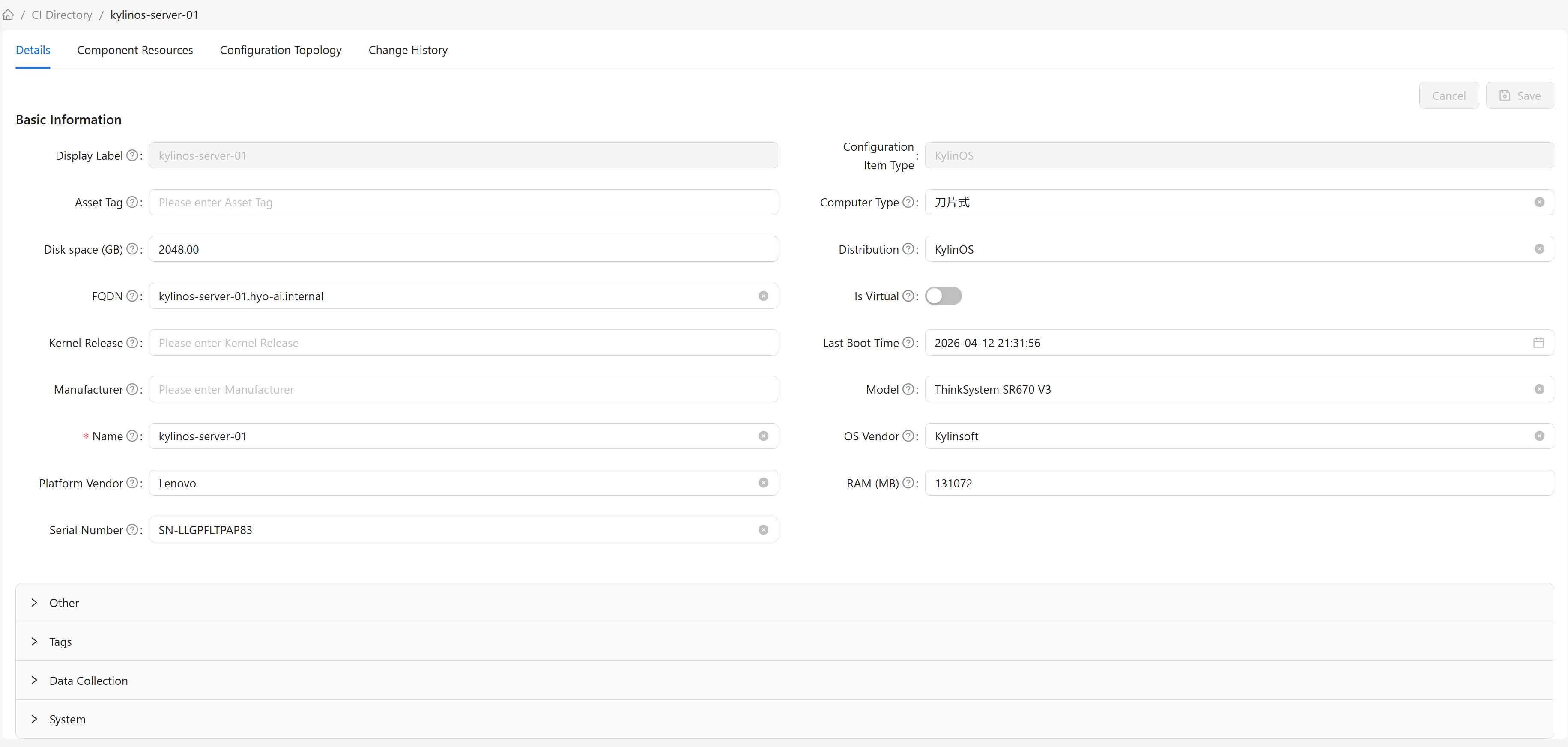
Attribute Groups
CI attributes are displayed organized by groups (see Attribute Management). Attributes within each group are sorted by their display name.
Basic Information Attributes
The Basic Information group displays the CI's core attributes, including:
- Fixed Attributes: System built-in attributes (such as display name and CI type), listed first. These attributes exist in all CIs and cannot be deleted.
- Basic Group Attributes: Attributes assigned to the "Basic Information" group in the CI type definition. Different CI types may have different basic group attributes.
Other Groups
In addition to Basic Information, there may be other groups depending on the CI type definition:
- Data Collection Information: Attributes related to data collection
- Tags: Key-value pair tag information
- System: System-generated attributes
- Other: Attributes not in the above groups
Editing CIs
Modifying Attributes
- Find the attribute to modify in the Details tab
- Click the edit button or click the attribute value directly
- Modify the attribute value
- Click the "Save" button to save changes
Read-only Attributes
Read-only attributes are determined by the CI type definition: when an attribute is set to Read-only in the class definition, it is not editable on the detail page.
Required Attributes
Required attributes are determined by the CI type definition: when an attribute is set to Required in the class definition, it is marked with an asterisk (*) in the form. Saving validates that required attributes are filled in; if not, saving is blocked.
Saving Changes
Save Operation
- After modifying attributes, click the "Save" button at the top of the page
- The system validates all attribute values
- After validation passes, saves to the database
- Displays a save success message
Save Failure
If saving fails, the system displays an error message.